
Filter articles
How to understand your library’s data with Koha Log viewer
18 Sep 2025, 3:44 PMAlex Buckley, Rōpū kohinga Developer at Catalyst, shares insights on how to use Koha Log Viewer to understand your library’s data.
Ever wondered how to find out who made a change and when, in Koha? Koha Log viewer is a helpful tool that enables you to find this information. Whether you’re tracking down a deleted report or checking previous system preferences, the Log viewer can help speed up your troubleshooting.
What is Koha Log viewer?
Koha Log viewer is a free tool in Koha that reads the logs stored in your database. These logs are generated automatically when ‘logged’ actions happen, such as editing a patron, changing a system preference, or deleting a bibliographic record.
With the Log viewer, you can:
- see when an action happened
- identify who made the change
- understand what was changed
- see where the change came from (a staff member or an automated process).
How can I set up Koha Log Viewer?
From your Koha staff interface homepage, go to:
- Go to ‘Koha Administration’ > ‘System Preferences’
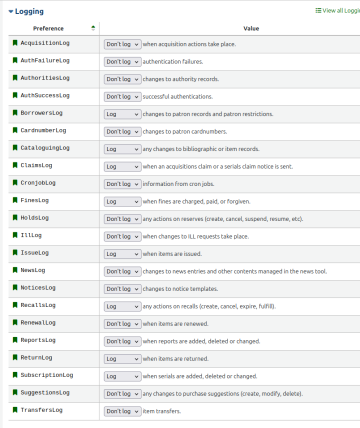
Pictured: The logging system preferences in the Koha staff client, with a variety of ‘Log’ and “Don’t log” values are configured.
- Scroll to the ‘Logs’ section.
- Enable the preferences you want.
- Save your changes.

Note: Koha will only start logging actions from the moment you enable a log preference. No retroactive data is captured.
In the Log Viewer interface, each logging system preference corresponds to a module check box. For example, if the CataloguingLog system preference is enabled, you can click the ‘Cataloguing’ check-box.
Tip: A green triangle next to the tool display means the logging system preference is not enabled.

Pictured: The modules check-boxes in the Log Viewer tool, with the ‘All’ check-box ticked.
Does Koha automatically record any logs?
Koha will only record logs if the relevant log system preference is enabled. For example, you can use the Log Viewer tool for viewing changes to bibliographic and item records if the ‘CataloguingLog’ system preference is set.
By default, Koha has the following logging system preferences enabled:
- BorrowersLog
- CataloguingLog
- ClaimsLog
- FinesLog
- IssueLog
- RecallsLog
- ReturnLog
- SubscriptionLog
Who can access the Log Viewer?

Pictured: Koha user permission page with the 'browser_system_logs' permission checked and highlighted yellow.
Not all administrative staff can access the Log Viewer tool. At a minimum, a user must have the ‘catalogue’ and ‘view_system_logs’ permissions (which sit under the ‘Tools’ parent permission) checked to access the Log Viewer.
How long does Koha keep logs?
By default, Koha does not delete system logs. If you’d like to set up an automated script to delete logs that are older than a certain date, your service provider can help you.
What can I do with Koha Log viewer?
Koha Log Viewer can track actions in many Koha modules, such as user authentication, bibliographic records, and core day-to-day operations.
1. Recover a deleted SQL report

Pictured: A deleted Koha SQL report, with the deleted SQL highlighted ready to be copy/pasted into a new report.
If you’ve accidentally deleted a report, you can recover the exact SQL query it used. To set this up:
- The ‘ReportsLog’ system preference must be set to ‘Log’ before deleting the report.
- Run Koha Log Viewer with the ‘Reports’ module selected.
- Copy the SQL from the log entry.
- Paste it into a new report in Koha.
2. Retrieve a deleted news item, HTML customisation, or custom page

Pictured: A deleted Koha HTML customisation report, with the deleted HTML code highlighted ready to be copy/pasted into a new report.
If someone accidentally deletes a homepage notice or a custom HTML block, you can recover it. Follow these steps to set it up:
- The ‘NewsLog’ system preference to ‘Log’ must be set before deleting the homepage notice or HTML block.
- Run Koha Log Viewer with the ‘News’ module selected.
- Copy the deleted HTML.
- Paste it into a new customisation.
3. Review system preference changes
Want to know the history of a setting change? To set this up:
- Select the ‘System Preferences’ module when you run the logs.
- View all changes, who made them, and when.
How to narrow down your Log viewer searches

Pictured: The Koha Log Viewer tool, with the ‘Cataloguing’ module checkbox selected, ‘All’ actions checkbox selected, Object textbox containing ‘42’ and the Info text box containing the word ‘biblio’
Let’s say you want to track changes to a single bibliographic record. You'll need to know the unique ID number of the bibliographic record. In Koha, that is called the biblionumber and is usually stored in the 999$c of the record.
In the Log Viewer:
- Tick the ‘Cataloguing’ module check-box.
- Keep the ‘All’ actions check-box selected.
- Write the biblionumber into the ‘Object’ text box.
- Write the word ‘biblio’ into the ‘Info’ text box.
Then the Log Viewer will filter the results and only display cataloguing changes tied to this record.
You can find more examples on the Koha Community Wiki.
Koha Log Viewer tips
- Run your Log Viewer often with short date ranges to reduce the load-intensive queries on your Koha server.
- Consider your database storage. For example, large libraries may not want to log daily user imports or bulk catalogue changes.
Koha resources
- If you have any Koha questions, Rōpū kohinga at Catalyst are here to help
- Check out our Koha blog posts
- Watch our Koha webinars
- Connect with the Koha Community

